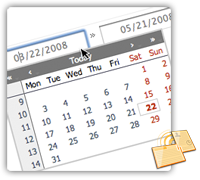
Pagico allows you to assign due dates for tasks, in both lists (in topics) and contact profiles. It provides you a popup calendar so you can pick up dates easily. However, some times we need more out of it. For example, some times we need to set a specific time rather than just a date; or we just want to add a task for tomorrow (or next week), and we’re too lazy to open that calendar and pick the date.
This article will show you the “advanced” (more powerful, faster, and easier) way of setting up dates.
Background Information
The way of entering dates being covered in this article, applies all the date-related input boxes, such as the “Start Date” and “Due Date” for tasks in both topics and contact profiles, and the “Date” of the activities in contact profiles.
Getting Started
The first step, would be “NOT” to click on the due date input box. Instead, use keyboard to focus on that input box. For example, start a new list item (or modify an existing one), your keyboard focus should be on the list item caption box. If not, click in the input box to focus on it. After typing in the desired caption, use your keyboard button “tab” (to the left of the “Q” key) to move the keyboard focus to the due date input box (note: if you have “Advanced Tasks Management” option turned on, you may need to press TAB key twice to reach the due date input box). By doing so, the popup calendar will not be triggered, and you will be free to type anything in the box.
What to type?
Okay. You can write date and time information in almost ANY way you could imagine, in English of course.
For example, “tomorrow” will be recognized by Pagico as the next day with the same time as you enter it. So, “yesterday” would be the previous day with the same time as you enter it.
“next week”, “next wednesday”, or even “next month” will work.
Some times, you want something to be due exactly 5 days from now. Just enter “+5 day”. So, for tasks due in two weeks, just write “+2 week”.
Setting date AND time info
You probably have already got the answer, after reading all these stuff above. Yes! Just write “10:00” for 10 o’clock today, or “tomorrow 10:00”, or the most basic form: “9/27 10:00”.
Well, that’s it!
Probably the feature itself is not that fancy, but I’m sure it’ll save you tons of time. Because it has saved mine a lot of time (I’m a very anti-mouse person, and now you know it).
😀